Friday, 28 September 2018

Fantastical 2


Intro

Do you use a calendar app on your phone? I'm going to take a look at Fantastical 2, a calendar app for iOS and Mac.

Welcome

Calendars are one of the most useful and used apps on a device, simply because they help us keep track of what we’re doing; and because we use it so often, it helps to have an app that you enjoy using.

I use Fantastical 2 on my iPhone and Mac, and it’s also available on the iPad.


I know what you're going to say - "I already have a calendar app, that’s pre-installed". Absolutely; but I find the native Apple app very flat, and since I have multiple calendars, not easy to manage. Not only that, but adding events to the calendar is really rather clunky.
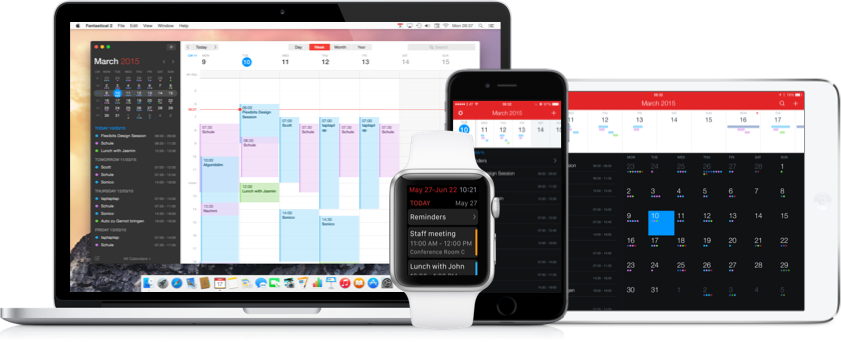

Fantastical 2

With Fantastical 2, one of the major benefits is the ability to use natural language to enter events. Just type "Lunch with Jack tomorrow at 1pm" and the event will be created.

Maybe you have a recurring appointment; just add "Tennis every wednesday at 7pm" and the event will be created on a repeating schedule.

With the app open, just click the '+' and start typing. You'll see the details populate as you type - it's quite clever. If you have multiple calendars, you can select which one you'd like to use.

Of course, you can also invite others to the same event, by entering their email address. When they reply, the event will be updated automatically.

iPhone


Looking at the iPhone version; Since it works with existing accounts, as created in my iPhone settings, then it's easy to see each calendar. The number of settings is quite ridiculous, giving granular control of how you are alerted to events; whether you want to see the number of remaining events, or tasks or both. You can set the view to monthly or weekly, just by turning the phone on it's side (or a quick swipe down).


If you have reminders set, which, let's face it, most of us will have a notification of an event, then you can set Fantastical 2 to remind you when you reach a specific location. Handy if you don't want to be disturbed.

You can choose your default maps application, to open directions; from either Apple Maps or Google Maps. You can also choose the default browser, for opening links.

If you prefer your app theme to be dark, then Fantastical 2 offers this option too.

Mac

On the Mac, things work slightly differently. You can still use natural language to create your events, and the breadth of customisations is remarkable.

On the one hand, you can set the badge app icon to display remaining events, or reminders, but you can also have multiple calendars that will show up depending on your location.


For example, I have a work calendar, that will automatically be displayed when I arrive in the office. This allows me to concentrate on what's ahead of me for the day, and not be distracted by personal events. When I return home, my personal calendar will be displayed.

Calendars can also be set up in 'sets', which allows me to limit certain calendar views. Calendars I've subscribed to can also be set up within these 'sets', so I can see them too.

The Mac app also offers the choice of light or dark theme.

Then there's the quick-access mini window, which is accessed via the menu bar - this icon also displays todays date. Within this mini window, there's a text bar at the top, so you can quickly enter an event without going to the full calendar.

You can also view maps of the locations for your events.

You can set your notifications to remind you when it's time to leave; which can be a great help when you need to be somewhere.

iPad and Watch

Fantastical 2 is also available on the iPad - using the iOS version of the software, but the formatting is specific to the iPad, and looks terrific.
If you use Apple Watch, then there’s also an app for that. You can use force-touch on the screen to add events via speech; and you'll receive notifications directly on your wrist too.

Cost

OK. So I've talked through some of the functionality, but what does this cost. This is one of those apps that, on the Mac at least, has quite a high initial cost - at £39. However, before you all start shouting at me, bear in mind that this is a one-off cost. If you consider this against subscription models for other productivity apps, which charge annually, then this works out quite reasonably. The iOS and iPad cost are between £3 and £4.

We shouldn't baulk at these costs. Developers spend a lot of time and effort creating these apps, so why should we get them for free. In fact, the people that make Fantastical 2, flexibits, regularly release updates, which is always nice to see.

Alternatives

Now, of course, there are plenty of alternatives which offer similar functionality.

Firstly, as I mentioned earlier, there's the built in calendar apps. They're quite plain, and I don't get on with them very well. But, they are free to download and use and functional.

Google Calendar is also free to use (as is all of Googles suite of software). It's a very capable calendar, but isn't quite as polished as Fantastical 2, and there is no natural language capability. It does offer integration with Apple Health to track your workouts. You can also use Google Calendar via the browser on your PC or laptop.

Calendars by Readdle is available for iPhone and iPad (but not the Mac) and costs £6.99. It's a suitable calendar, but I find it's not as good an experience as Fantastical 2, and again, there is no natural calendar entry.

Conclusion

As you might have guessed; I like Fantastical 2. The one huge benefit is the ability to capture events using natural language. Typing in the way that you speak makes it easier and quicker to enter the details. I also appreciate the high cost of entry could be a turn off for many.

Thank You

I hope you’ve found this post interesting.
Do you use Fantastical 2, or can you recommend a calendar app that you use. If you have any questions about Fantastical 2 or any other calendar app, then please get in touch via the comments below.

Equipment I use to make my podcasts:
Blue Yeti Microphone - https://amzn.to/2R2am1N
Pop Filter - https://amzn.to/2OVMbQP
Professional Microphone Boom Arm - https://amzn.to/2P4EIio

If you purchase from these links then I may receive a commission.  This does not affect the price you will pay.  Thank you.

Friday, 21 September 2018

Online Security


Intro

In this post from Productivity Matters, never has online security been more important, as we constantly hear about systems being hacked and our private information being stolen.
All it takes are a few simple steps to prevent this from happening to you.
I’ll explain more about online security.

Phishing

How seriously do you think about your online security? Regularly? Once a month? Never? More and more we're being reminded about the need to keep our personal information safe and secure, and never to divulge anything that could identity us to would-be hackers or thieves.

There are many ways in which your information can be obtained by nefarious players.
Phishing is one of the most common. Ever more intricate and daring, the conmen and women find ways to get you to divulge your credit or debit card information, giving them access to your money.
So often we are reminded to not give out ANY information without being absolutely certain that the person we are talking to is genuine.

The newest type of scam is where an email is intercepted, and scammers use the information to request payment for some work. You're expecting this email, and when they give you the bank details, you don't think twice. BUT - is this the real person? It's important not to interact with these people and make the checks yourself, before paying.

Hackers

The more technical will attempt to get your details direct from the databases that contain them. Through finding loopholes and breaches in security, they can steal card information, from which they can then go forth and spend.
Stealing passwords is also a major problem - access to your account is immediately available.

Play Safe

There are many steps you can take to protect your identity, some of which are really basic, and others are more involved - but all of them, when used in conjunction with each other will help secure your data.

Password Protection

First and foremost; keep ALL your passwords safe. When was the last time you changed your password? Do you use more than one password for your accounts? How strong is your password?

One of the most common mistakes is using the same password; usually made up of a family name or date of birth, across multiple online accounts.

If one account is compromised; it won't take long for the hackers to try your password against other accounts, and 'hey presto', your data is gone!

You have passwords for banking, online shopping, cinema, travel - you name it, there will be a whole host of accounts.

I'll come on to ways to save passwords shortly.

Two Factor Authentication

Another, relatively easy way to stay safe is to use two factor authentication. Also known as multi factor authentication, this requires a secondary device to login to an account.

The simplest and most convenient device is your mobile phone.

When this is set up, the next time you login, you'll be prompted to enter a code from your phone, into the account login page. Without this code, access will be denied.
So, even if someone does steal your password, without your phone, they can't access your account.

Codes can be received via a text message from the provider, or via an app installed on your phone. It adds an extra step to the process; but this far outweighs the problems if someone pretends to be you.

Password Manager

Earlier, I mentioned how you probably have the same password for multiple accounts; and the dangers this can pose to your personal data.

In recent years, there has been an increase in Password Managers, designed to help you create and manage your passwords.

I use LastPass; and at last count, it is storing over 200 passwords (as well as other useful information). With it all safely encrypted and stored, I can rest assured that my details are secure.

When I login to an account, using the browser plugin, LastPass automatically identifies the site I'm on and pre-populates my username and password. Simple. I don't even know what the password is, in some cases.
Because I don't have to remember each one, they can be as strong as possible; making guessing them virtually impossible.

If I create a new online account, I use LastPass to generate the password for me; creating a random, unique string of letters and numbers that mean nothing.

Of course, I do need to remember the password of my actual LastPass account - but this is something I created since I only need to remember that one.

Changing Passwords

It's also a good idea to regularly change passwords. And, if you're made aware of a breach of security at one of the sites you use, then definitely change it as soon as possible.
Again, LastPass can manage this for you; in some cases with just one click; making it as simple as possible to keep your information safe.

Cost

So, what about cost? What price security and peace of mind.
It costs a very reasonable $24 per year (which at the time of this podcast is about £18).

For the equivalent of $48, you can have a family plan, for up to 6 people.

I don't think this is expensive. I've been using it for a number of years, and it amazes me the number of people who continue to use the same password everywhere.

Alternatives

Whilst I use LastPass and have been extremely happy; there are other alternatives, such as Dashlane and 1Password. If you have an Apple iCloud account, you can store passwords in the keychain; and Google is soon to be launching their own equivalent of a password manager, for use in Chrome.

Finally...

Staying safe online doesn't have to be hard, and almost certainly must be continuously thought about.
There are simple steps:

  • Don't write passwords down where they can be easily found
  • Don't write PIN numbers down
  • Never give out your credit or debit card PIN
  • Change passwords frequently and
  • Use different passwords everywhere
  • Don't succumb to pressure of 'this offer ends really soon'.
  • If in doubt - say nothing. Make checks first before you continue with the transaction.  If the company or person is legitimate then they'll understand.

I hope you’ve found this post interesting.
If you have any questions about online security or LastPass, then please get in touch via the comments below.

Friday, 14 September 2018

Online Storage


Intro

In this post I'm looking at online storage.
With the majority of our lives now in 'the cloud', what options do you have for storing your data. And what are the associated costs?

Choices

When it comes to online storage, there are a vast array of choices, depending on your personal preference, and even what you want to do with it.
You might have a lifetimes worth of photos that need to be backed up.
You might have a whole host of documents that you've accumulated over the years.
There is something out there to suit you.
This post takes a quick look at 3 of the most popular services, each of which offers an app on iOS and
Android, making access to your files quick and easy.

Google Drive

For basic, online storage, that won't cost an arm and a leg, then you can't go wrong with Google Drive.
Most people have a Google account. I said 'most' people!
Google Drive is your online storage for all types of document. Word documents, spreadsheets, presentations, photos, as well as audio and video.
Google offer a minimum of 15Gb of storage completely free. For many, this is more than enough.
For just £1.59 per month, you can increase this to 100Gb.
Bear in mind that Google Photos, the standalone storage for your pictures, is free for High quality photos, but full resolution photos will count against your quota.
Within Drive, you can create folders and sub-folders and add files as necessary. You can also create files using Googles own Docs, Sheets and Slides software. These documents don't count towards your storage limit.
If you need to share documents, this is as easy as sending an email.
Google Drive is really the first port of call for online space.

Apple iCloud

If you are invested in the Apple ecosystem, you're probably using iCloud. Here you get 5Gb of storage included; with a charge of 79p per month to raise this to 50Gb.
Documents created in native Apple apps are still counted, so this isn't as beneficial as Google.
However, it provides easy access, and items stored on your Mac desktop are automatically sync'd to iCloud, so you can retrieve them on other Apple products.
Do you use the iCloud Photo Library? This also uses your quota of storage.
Your iCloud storage will also be used for backups, both for your device and the apps you have installed, which means you're likely to use up the free space much more quickly.
It might be worth changing some settings, to save the apps backing up, to preserve space.
Having said that, 79p per month won't break the bank, for another 50Gb.
I should mention that iCloud is only available via Apple products, and therefore not available on Android devices.

Microsoft OneDrive

The final one to be included here is Microsoft OneDrive.
There are a couple of flavours here. If you have Office 365 Home or Personal, the OneDrive is bundled into the package and you get a whopping 1Tb of storage (on the Home version you get 1Tb each for up to 5 people!)
Should you not have access to Office 365, then there is a free storage plan offering 5Gb of space.
If you need more space, then this costs £1.99 per month, for 50Gb of space.
As with the others, it's easy to access and share documents from anywhere you can login to the service. There's also the obligatory app for iOS and Android.

Cost

Looking at a base of 50Gb per year; the costs would stack up like this:

  • Google Drive. You get 15Gb free, and the minimum additional payment is £19.08 per year. For that you get 100Gb
  • Apple iCloud. They include 2Gb free, with an annual cost of £9.48 - you get 50Gb. The next plan is 200Gb!
  • Microsoft OneDrive gives you 5Gb for free then a cost of £1.99 per month - £23.88


Conclusion

On the face of it, iCloud represents the best value; but this is really only suitable for those with an Apple ID. Otherwise, Google is the winner.
I have had my Google account for a number of years, and so far, I've only used about 20% of the space, which equates to just under 9Gb.
You get the 15Gb included free when you sign up, and it's only £1.59 per month IF you need more.

Do you use an online storage provider? If so, which service do you use? Is there a better value alternative, in your opinion, to the three mentioned here?

I hope you’ve found this post interesting.

If you have any questions about online storage, or have any suggestions about a subject you'd like me to discuss, then please let me know in the comments below.

Equipment I use to make my podcasts:
Blue Yeti Microphone - https://amzn.to/2R2am1N
Pop Filter - https://amzn.to/2OVMbQP
Professional Microphone Boom Arm - https://amzn.to/2P4EIio

If you purchase from these links then I may receive a commission.  This does not affect the price you will pay.  Thank you.