Showing posts with label calendar. Show all posts

Friday, 15 March 2019

We're Getting Married

Intro

Hello there.
I’m Julian and I'm really pleased that you've chosen to download and listen to this episode.  I really appreciate you taking the time to listen to little 'ol me! 
If you're new here, then welcome to the Productivity Matters podcast.
This is a bit of a special episode as I’m going to talk about planning a wedding.  In fact, planning my wedding.  
So, I’m just going to pop the champagne open and pour myself a glass…. would you like one too?  Alright then.
Enjoy it, as you listen to this weeks episode

Getting Married

Yes.  I’m getting married.  This coming Sunday in fact.  And if you’re listening after the event, then it’s the 17th March.  It’s an amazing feeling; and we’re both very excited.  In fact everyone is very excited.
Karen, my fiancée is a wonderful lady (lady?)
Does the word ‘lady’ make you think of an older person?  At what point does someone go from being a young man/woman, to a man or woman.
Should I say that my fiancée is a wonderful woman?  Wonderful girl?  'Girl’ sounds too patronising?
Whatever - Karen is wonderful.  In every sense.  She’s beautiful, caring, generous, loving and I can’t wait to marry her.
We’ve been together for over 7 years, and the time has flown.  7 years?  Yes - this is the 7 year itch - in reverse… haha!
Between us, we have 5 children; and before you start shouting at me - they don’t all live with us, all the time.

I Do

So, whilst this is all very exciting, it’s a really, lovely, tenuous link to talk about some of the apps we’ve been using to help prepare for the  big day.  
These won’t come as a surprise to regular listeners, but explaining them in a real-world scenario may help you to better understand the benefits they bring.
Karen is not a huge fan of using lots of different technology - a pad and pen are more her style.  Which is absolutely fine, and it works.  It just makes it more difficult if you need to share tasks and information.
So; what have we been using?

ToDoIst

First of all; as with all big events, there are to do lists on top of to do lists!  Whilst I use Todoist (and totally love it) I wasn’t going to ‘force’ it on Karen, so we set up a shared Reminders list on iCloud.  Now I can see all the tasks, when they’re added and, more importantly, when they’re checked off as complete.
I would have liked to have these in Todoist - however, since I use Fantastical 2, I set the specific Reminders list to show in my calendar, so I only needed to see one list; and it’s easy to add to a Reminders list from Fantastical 2 as well.
I did create my own list, in Todoist, for some things that I needed to do - like write my speech, sort out my clothes etc, and in this way could keep my individual tasks separate from the main tasks.

Calendar

Of course, there are many people involved in planning and delivering an event as big as a wedding, those who are providing services; such as the caterer, florist etc etc.  Meetings for all these were all managed using a shared iCloud Calendar.  
Again, as I use Fantastical 2 on my MacBook and iPhone; the calendar is available there, and I could continue to use that without any changes.
So, Fantastical 2 has proved itself very versatile in bringing together two applications together to minimise the number of apps that are needed.
With all the emails flying back and forward, I use Spark email, and the integration with Todoist helped me to save time, by just adding the emails to the relevant service, for following up later.

Evernote

Now, as the groom, I needed to write, and deliver, a speech.  I agonised and spent a rather inordinate amount of time going over it, finessing it.. and I needed a tool to keep it with me everywhere, so I could access it whenever I needed to. 
That tool was Evernote.  
I have been an Evernote user for over 8 years now, and whilst I have tried others, such as Bear and OneNote, Notes on Apple devices and Google Keep, regardless of the bad press that Evernote has received over the last few months, it’s still the service that I naturally turn to for taking notes.
A big benefit of Evernote is the Web Clipper. It's a fantastic way to take clips from pages on the internet and save them for later. Maybe you're researching a new car, or holiday or anything you like; you see something on the internet that you want to keep for reference.
The Web Clipper, which is installed as an extension on you browser, will let you either capture the entire screen, just a snippet or a text version and save it straight into your Evernote. You can even set the notebook you want it stored in, along with any notes and tags.

I use Evernote in conjunction with Scannable, so it was useful to capture invoices and important information we received, to store them in a single place.
I also use it for work, to capture notes from meetings, as well as somewhere to brain-storm ideas.
The search functionality within Evernote is second-to-none. If you've scanned in documents, the OCR capability for documents, means that when you search for something, Evernote won't only look at the notes that you've created, but also inside the documents (whether word or pdf). It will also search any text that's part of a photo.
This means, that even without the notebooks, if you're looking for something, then there is a very high probability of finding it just entering a key phrase or word.
This does mean that the number of results returned from this search could be daunting; and another reason why you could use the tagging functionality to help filter and focus on what you're looking for.
Evernote also has Templates; ideal if you’re using the same format for many notes.  When you start a new note, opt to use a template, and the screen will be pre-filled with tables, or format, for you to complete.  Great for agendas, or journal keeping or a telephone message pad etc.
Back to my speech… 

Google Sheets and Docs

Another HUGE part of planning a wedding is managing the finances!  Weddings aren't cheap and keeping tabs on the expenses is a must, to make sure you don’t go mad.  Of course, this is relevant for all things in life, not just weddings!!
I created a Google Sheet into which I added 4 columns.  The reason for the expenditure, the total expected cost, the deposit paid and the final column is a calculated value based on B-C (the expected cost minus the deposit paid).
Because this is a Google Sheet, I could share this with Karen, so she could also update the figures.
We also created the guest list and the table plan in Google Sheets.   We used Google Docs for some Reserved signs we wanted to put on some chairs.

Wrap Up

Planning a wedding is a lot of fun, and we’ve really worked as a team to make sure it’s going to be a day to remember.
Here’s a recap of the productivity tools we’ve used to help us.
Todoist and Reminders
Apple Calendar and Fantastical 2
Google Docs
Google Sheets
Evernote

Wedding Phrases

Whilst I was pulling the details of this episode together, I got to thinking about phrases to do with weddings.  The most common one, that I can tell, is to tie the knot.  
Where does that phrase come from?
There is a suggestion that this expression derives from the nets of knotted string which supported beds prior to the introduction of metal-sprung bedframes. The theory goes that, in order to make a marriage bed, you needed to 'tie the knot'. Like many such folk-etymological explanations, there's not a shred of evidence to support this idea.
It isn't clear whether this expression derives from an actual knot used in marriage ceremonies or whether the knot is merely symbolic of a lasting unity. Knots have a   place in the folklore of many cultures and usually symbolize unbreakable pledges. Actual knots have certainly been used in marriage ceremonies for some time and the tradition of trying the wrists of the bride and groom with twine continues today in marriages in the use of sashes which are placed over the principal's wrists. The word 'knot', although not in the phrase 'tie the knot', has been associated with marriage since at least the 13th century. The Legend of St. Katherine, circa 1225 used the Middle English 'cnotte', that is, 'knot', to mean 'the tie or bond of wedlock; the marriage or wedding knot’.
What about - Plight my troth.  A very old-English saying.
Troth is faithfulness, loyalty, honesty. Troth is not something you just trot out. It is something that is a commitment. It is something you plight. So the magic spell could be I promise you I will be true.
Other, more common, slang terms include Getting hitched and Getting spliced

Podcast of the Week

Before I finish, it’s time for “Podcast of the Week” - my weekly look at another podcast that you might find interesting / enjoyable.
I don’t normally do national radio podcasts; but one I listen to every day is from BBC Radio 2 - it’s the daily pop quiz, called Pop Master.
Hosted by Ken Bruce, this quiz is part of the weekday, mid-morning show, and pits two listeners against each other to get the highest score, to get the chance to win a digital radio.  The podcast splits this segment and presents it in a nice, roughly 15 minutes, episode.
As I said, I would normally promote an independent podcaster, but since this one is a lot of fun to listen to; especially as I try my best to answer as many questions as possible, then I thought I’d include it.
That’s Pop Master, from BBC Radio 2 - it’s available wherever you normally listen to you podcasts.

Thank You

And that’s it for another week.
I’m going to prepare to tie the knot and plight my troth!!  
I hope you’ve found this episode interesting.
If you have any questions about anything I’ve mentioned, or anything else, then please get in touch via Twitter @prodmatters
Please don’t forget to press the subscribe button in your podcast app of choice, then you’ll get a notification ding when a new episode has been released, so you won’t miss another episode.
Thank you very much for listening and until next time, remember, Productivity Matters.
Equipment I use to make my podcasts:
Blue Yeti Microphone - https://amzn.to/2R2am1N
Professional Microphone Boom Arm - https://amzn.to/2P4EIio

Please help to support this podcast - click here to make a donation which will help me to keep creating great content.
It's very much appreciated.  Thank you.

If you purchase from these links then I may receive a commission.  This does not affect the price you will pay.  Thank you.

Friday, 9 November 2018

Google Products


Introduction

There is one tech company on this planet which has worked its ways into the very fabric of our technical lives. 
Without them we would be one verb less, and even though we don’t pay for it, we would probably the poorer without it. 
I don’t need to Google this answer. 
It is, of course, Google. 
I’m Julian, your host, and in this episode, I’m going to take a look at the various products they offer and how they might be able to help you.
Coming up on Productivity Matters.

Google

Google appeared on the scene back in 1998; a newcomer to the world of search. Started by a couple of students to improve how they could search what was, then, an internet far removed from what we know now; it has grown into a monolith of a corporation. 
Like most businesses, Google exists for their shareholders, to make money. And although there is a philosophical approach Google makes their money from advertising and selling data. I’m not going to spend time going into details, but as I’ve mentioned in previous episodes; since you don’t pay Google for their services, then they sell data about you; so advertisers can better target their products. 
Apart from their famous search engine, over the years they have built a portfolio of products that enable you to completely run your life.... they have developed a range of products and services that without them; well, who knows!
In no particular order....
<Fade out as I start reading this>
Allo, Android, Calendar, Cast, Chrome, Contacts, Docs, Drawings, Drive, Duo, Earth, Forms, Gmail, Keep, Maps, Sheets, Sites, Slides, Tasks,, Translate, Waze, YouTube....

Gmail

Gmail is probably the most well known product, and has become quite the most popular email client in the world!
It's been designed to be very easy to use; with a lot of functionality built over time.  In fact, Google release a new email client called Inbox, which had a host of functions not available in their main offering.  Recently, they announced that Inbox would be shutting down - and the functionality has been ported to Gmail.
You can run Gmail pretty much anywhere.
In the main, Gmail is no-frills service that is easy to set up and manage.

Calendar and Contacts

In conjunction with Gmail, there is Contacts for managing, yep, your contacts.  It's easy to use, and changes are synchronised between your devices.
As is Google Calendar.  A very fully-featured calendar, that makes it super simple to keep track of appointments.  You can create multiple calendars, subscribe to calendars, invite and respond to events, see it in different views; day, week, month etc.  Again, you can install this on your device and it's all synchronised beautifully.

Keep

For note taking, they offer Google Keep.  This is actually quite a good note-taking app.  It's available on all platforms and works very well at sorting your information.  You can use tags to 'filter' into related notes.  You can even create a Google Doc from the note; so you can start an idea briefly, and then build on it in a full document.

Maps

For travellers, there is Google Maps.
This is an app I use quite a lot; especially as it can now be used with Apple's CarPlay.
I believe it's the best mapping service; with so many integrations to traffic and transport management.  Enter a start and end point, and it will tell you how long the journey will take.  Using the data history of the route, Google will also give you an idea of the length of the journey at any given point in time.  If you want to travel tomorrow at 2pm; then Google will tell you the average journey time then!
Want to use public transport; then these services can also be applied, and Google will advise route number or train times to help you plan.
Colour coding on the roads on the map will tell you if it's busy or quiet; and alternatives are also displayed.
If you're going to a specific place, it will tell you if you are due to arrive after the place as closed - again based on the raft of data and information Google has built up.

Translate

Going overseas - take Google Translate with you.  Ideal for understanding menus in a foreign restaurant.
You can translate either into another language, or back into your native language.  The app will allow you to hold the camera up to a sign or document and you will see the translation in real-time on the screen.  You can then take a picture, highlight text and it will translate that too.  Use the microphone to translate voices.
It might not be perfect, but it is an incredible tool.  

Photscan

I've previously discussed Google Photos, which uses machine learning to help search for photos by colour, building, person - and there is also their PhotoScan app, for capturing those 'old' prints and converting them to a digital image.

Hardware

In this episode I've only talked about their software services.  Google also has a range of hardware, that is designed to work hand-in-hand for the full experience.  Products such as their mobile device, Chromebook, Chromecast, Google Home.  I'll save those for another time.

The End

I hope you’ve found this episode interesting.
Do you have a favourite Google product?  Have I missed one that should have been included?
If you have any questions about Google services then please get in touch via Twitter @prodmatters
Don’t forget to subscribe where you normally listen to podcasts.
Thank you very much for listening and until next time, remember, Productivity Matters.
Show Notes

Links to the products mentioned here:
Google Photoscan

Equipment I use to make my podcasts:
Blue Yeti Microphone - https://amzn.to/2R2am1N
Pop Filter - https://amzn.to/2OVMbQP
Professional Microphone Boom Arm - https://amzn.to/2P4EIio

If you purchase from these links then I may receive a commission.  This does not affect the price you will pay.  Thank you.


Friday, 5 October 2018

Notion


Intro

I'm going to take a look at a relatively new app, called Notion. It's like a one-stop shop for all your stuff.


Welcome

If you’re a user of Evernote, ToDoIst, Trello, calendars, even wikis, then there’s a app in town that has you pretty much covered.

Notion.so is an all-in-one workspace.
In fact, their own website likens then to a Lego-style building blocks for your information.

Introduction to Notion

Notion is completely free to use on iOS, Android, Mac, Windows and via the web. Notion allows you to build workspaces to store and manage information for whatever you like.
A good example to start with is this podcast.
I use Notion to collate and write my scripts. I can upload documents, add images, to be used in the blog transcript, and use a kanban board for my to do list - when I need to complete scripts, when I need to record, etc.
I use Notion to update the blog version, before copying it into my blog.
In fact, Notion has been touted as a replacement for Evernote; although I don’t think it’s quite there yet in terms of some of the functionality.


Notes & Wikis

Notion is great for businesses and individuals alike. So what does Notion claim they can replace?
For notes and documents, then it can replace Google Docs and Evernote - although, as I mentioned before, the full capability of Evernote is not there yet.


The knowledge base style could replace Confluence or GitHubWiki. With code snippets a breeze, it's a great tool for capturing coding standards. You can embed a document stored on Google Drive. Add a link from Google Maps. Do you use Invision for your designs? These can be embedded too. There are 50+ integrations.

Tasks & Projects

For tasks and projects, Notion say they are a good alternative to Trello, Jira and asana. I have to agree that the Trello style boards is really rather good, with plenty of options to add statuses, reminders, tags and the like.
You can create to do lists, and add a reminder.


At the moment you can’t create recurring tasks, so it’s not a replacement for ToDoIst or Reminders just yet. But I’m assured that’s coming.

Finally, spreadsheets and databases. For this, they suggest this can replace Google Sheets and Airtable. Using views, Notion does give you access to your information in a variety of ways.

General

Editing across the application is as simple as drag and drop. You can do font customisations, select colours and add comments; which is ideal for collaboration.
Talking of collaboration, you can also use the Slack integration to push updates to the rest of your team.

Just by highlighting text, you can create bulleted or numbered lists and one of my favourites is the toggle list - which allows you to expand / or hide a section of text at the click of a button.
Notion can also be used offline and will sync with your other devices when reconnected.
I could spend many more hours talking through the various options.

Cost

Earlier on I mentioned that Notion is free to use, and that is true. You can have unlimited members, and you get 1000 blocks of whatever type of content you want to create. A block is any single piece of content you add to your page; like a to-do item, an image, embedded file. It's a lot of information - my entire set of scripts and blogs are created here and I have plenty of room left.

The free version also limits file uploads to 5MB for each file.

Once you reach the limit, you can either delete blocks to free up space, or you can subscribe to the completely unlimited personal version, with no file upload limit, and advanced permissions for $48 per year (which is about £36 at todays rate).

The Team version, which also adds administrative tools is $96 per year, per user (about £74). When you consider the costs of the other tools combined, this is not overly expensive.

Conclusion

Now, whilst I am extolling the virtues of Notion, it must be said that it comes with quite a steep learning curve.

It can do so much, and when you first start to look at it, it can be a little daunting. However; it is definitely worth spending some time getting to know what it can do - and since it's free, then there's nothing lost; except time.

Thank You

I hope you’ve found this post interesting.
If you have any questions about Notion, then please get in touch via the comments below.

Equipment I use to make my podcasts:
Blue Yeti Microphone - https://amzn.to/2R2am1N
Pop Filter - https://amzn.to/2OVMbQP
Professional Microphone Boom Arm - https://amzn.to/2P4EIio

If you purchase from these links then I may receive a commission.  This does not affect the price you will pay.  Thank you.

Friday, 28 September 2018

Fantastical 2


Intro

Do you use a calendar app on your phone? I'm going to take a look at Fantastical 2, a calendar app for iOS and Mac.

Welcome

Calendars are one of the most useful and used apps on a device, simply because they help us keep track of what we’re doing; and because we use it so often, it helps to have an app that you enjoy using.

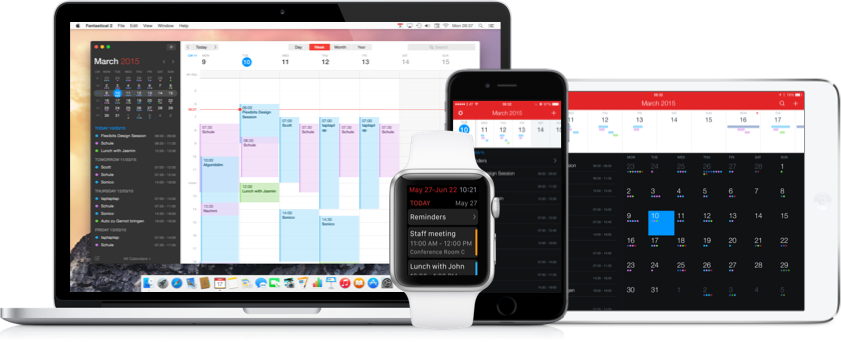
I use Fantastical 2 on my iPhone and Mac, and it’s also available on the iPad.


I know what you're going to say - "I already have a calendar app, that’s pre-installed". Absolutely; but I find the native Apple app very flat, and since I have multiple calendars, not easy to manage. Not only that, but adding events to the calendar is really rather clunky.


Fantastical 2

With Fantastical 2, one of the major benefits is the ability to use natural language to enter events. Just type "Lunch with Jack tomorrow at 1pm" and the event will be created.

Maybe you have a recurring appointment; just add "Tennis every wednesday at 7pm" and the event will be created on a repeating schedule.

With the app open, just click the '+' and start typing. You'll see the details populate as you type - it's quite clever. If you have multiple calendars, you can select which one you'd like to use.

Of course, you can also invite others to the same event, by entering their email address. When they reply, the event will be updated automatically.

iPhone


Looking at the iPhone version; Since it works with existing accounts, as created in my iPhone settings, then it's easy to see each calendar. The number of settings is quite ridiculous, giving granular control of how you are alerted to events; whether you want to see the number of remaining events, or tasks or both. You can set the view to monthly or weekly, just by turning the phone on it's side (or a quick swipe down).


If you have reminders set, which, let's face it, most of us will have a notification of an event, then you can set Fantastical 2 to remind you when you reach a specific location. Handy if you don't want to be disturbed.

You can choose your default maps application, to open directions; from either Apple Maps or Google Maps. You can also choose the default browser, for opening links.

If you prefer your app theme to be dark, then Fantastical 2 offers this option too.

Mac

On the Mac, things work slightly differently. You can still use natural language to create your events, and the breadth of customisations is remarkable.

On the one hand, you can set the badge app icon to display remaining events, or reminders, but you can also have multiple calendars that will show up depending on your location.


For example, I have a work calendar, that will automatically be displayed when I arrive in the office. This allows me to concentrate on what's ahead of me for the day, and not be distracted by personal events. When I return home, my personal calendar will be displayed.

Calendars can also be set up in 'sets', which allows me to limit certain calendar views. Calendars I've subscribed to can also be set up within these 'sets', so I can see them too.

The Mac app also offers the choice of light or dark theme.

Then there's the quick-access mini window, which is accessed via the menu bar - this icon also displays todays date. Within this mini window, there's a text bar at the top, so you can quickly enter an event without going to the full calendar.

You can also view maps of the locations for your events.

You can set your notifications to remind you when it's time to leave; which can be a great help when you need to be somewhere.

iPad and Watch

Fantastical 2 is also available on the iPad - using the iOS version of the software, but the formatting is specific to the iPad, and looks terrific.
If you use Apple Watch, then there’s also an app for that. You can use force-touch on the screen to add events via speech; and you'll receive notifications directly on your wrist too.

Cost

OK. So I've talked through some of the functionality, but what does this cost. This is one of those apps that, on the Mac at least, has quite a high initial cost - at £39. However, before you all start shouting at me, bear in mind that this is a one-off cost. If you consider this against subscription models for other productivity apps, which charge annually, then this works out quite reasonably. The iOS and iPad cost are between £3 and £4.

We shouldn't baulk at these costs. Developers spend a lot of time and effort creating these apps, so why should we get them for free. In fact, the people that make Fantastical 2, flexibits, regularly release updates, which is always nice to see.

Alternatives

Now, of course, there are plenty of alternatives which offer similar functionality.

Firstly, as I mentioned earlier, there's the built in calendar apps. They're quite plain, and I don't get on with them very well. But, they are free to download and use and functional.

Google Calendar is also free to use (as is all of Googles suite of software). It's a very capable calendar, but isn't quite as polished as Fantastical 2, and there is no natural language capability. It does offer integration with Apple Health to track your workouts. You can also use Google Calendar via the browser on your PC or laptop.

Calendars by Readdle is available for iPhone and iPad (but not the Mac) and costs £6.99. It's a suitable calendar, but I find it's not as good an experience as Fantastical 2, and again, there is no natural calendar entry.

Conclusion

As you might have guessed; I like Fantastical 2. The one huge benefit is the ability to capture events using natural language. Typing in the way that you speak makes it easier and quicker to enter the details. I also appreciate the high cost of entry could be a turn off for many.

Thank You

I hope you’ve found this post interesting.
Do you use Fantastical 2, or can you recommend a calendar app that you use. If you have any questions about Fantastical 2 or any other calendar app, then please get in touch via the comments below.

Equipment I use to make my podcasts:
Blue Yeti Microphone - https://amzn.to/2R2am1N
Pop Filter - https://amzn.to/2OVMbQP
Professional Microphone Boom Arm - https://amzn.to/2P4EIio

If you purchase from these links then I may receive a commission.  This does not affect the price you will pay.  Thank you.